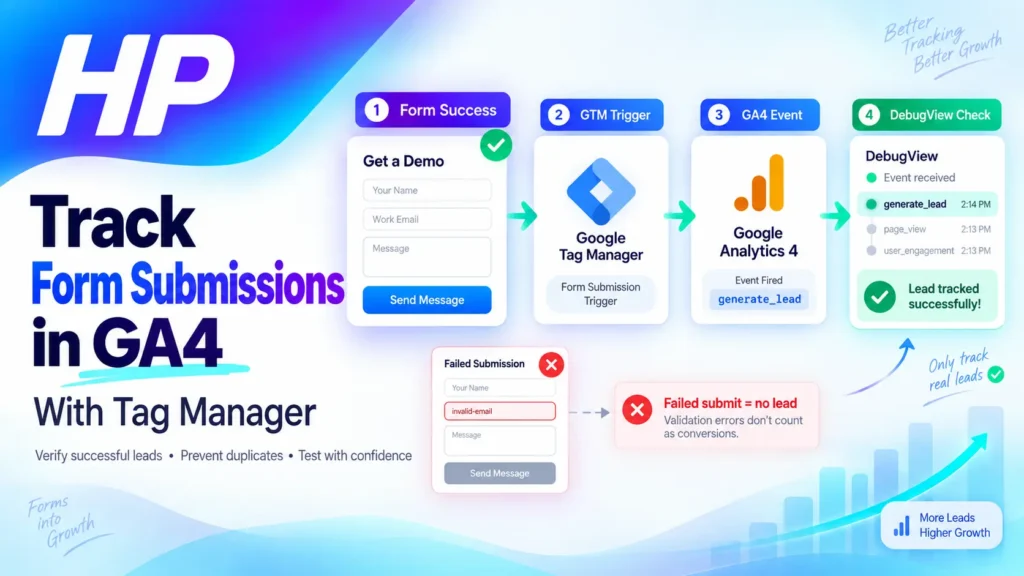
If you want to track form submissions in GA4, the most important step is not creating a tag. It is identifying what actually proves that the form was submitted successfully.
A visitor clicking a Submit button does not necessarily mean a lead was created. Validation can fail, JavaScript can interrupt the submission, or an AJAX form can return an error without reloading the page. Google Analytics 4 can also collect some form interactions automatically through Enhanced Measurement, so adding another GTM event without checking your existing setup can create confusing or duplicate reporting.
The workflow below helps you identify the correct success signal, send it to GA4 through Google Tag Manager, and verify that one successful form creates exactly one intended lead event.
Check What GA4 Is Already Tracking Before You Add Another Tag
Before creating anything in Google Tag Manager, check whether GA4 is already detecting the form.
In GA4:
- Go to Admin.
- Under Data collection and modification, open Data streams.
- Select your website’s web data stream.
- Open Enhanced measurement settings.
- Check whether Form interactions is enabled.
GA4 Enhanced Measurement can automatically collect events including form_start and form_submit.
Next, make a controlled test submission and check whether a form event already appears in GA4. Also open your GTM container and look for existing tags related to leads, contact forms, thank-you pages, or generate_lead.
Do not assume that an existing form_submit event means your lead tracking is finished. It tells you that GA4 detected a form interaction, but your business may need a more controlled event that represents a confirmed lead.
The goal is to establish one canonical event for successful lead generation instead of adding multiple tags that all represent the same business outcome.
Choose the Right Success Signal to Track Form Submissions in GA4
The best trigger depends on what happens after the website knows the form succeeded.
Before configuring GTM, submit the form yourself and observe its behavior.
| What happens after a successful submission? | Tracking approach |
| The application sends a specific success event | Use a GTM Custom Event trigger, often through the dataLayer |
| The visitor reaches a unique confirmation page | Trigger from that confirmation page |
| The browser performs a normal form submission | Test GTM’s Form Submission trigger |
| An AJAX form displays a unique success message | Use a reliable custom event or carefully tested Element Visibility trigger |
| The user only clicks the Submit button | Do not treat the click alone as proof of success |
A submit-button click is a weak signal because the visitor may still fail validation or the server may reject the request.
For JavaScript or AJAX forms, GTM’s native Form Submission trigger may not detect the successful action because the form can override normal browser submission behavior. If the website or developer can push an event after confirmed success, the tracking flow becomes:
website confirms success → dataLayer event → GTM Custom Event trigger → GA4 event
To use that method in GTM, go to Triggers → New → Trigger Configuration → Custom Event and enter the exact event name the website pushes after a successful submission. Attach that trigger to the GA4 Event tag.
A unique thank-you page is also useful when that page genuinely appears only after successful completion. However, refreshing or directly visiting the page can sometimes create another page-based event, so it still needs testing.
Configure Google Tag Manager and Send the GA4 Event
Once you know which success signal represents the form, create the GTM trigger that listens for it.
For a standard form that produces a compatible browser submission event:
- In GTM, open Variables and enable useful built-in form variables such as Form ID or Form Classes if needed.
- Go to Triggers → New → Trigger Configuration.
- Select Form Submission.
- Use Check Validation where appropriate.
- Choose Some Forms rather than tracking every form on the site.
- Add a stable condition, such as the correct Form ID, Form Class, page path, or another unique identifier.
Then create the GA4 event:
- Go to Tags → New → Tag Configuration.
- Select Google Analytics: GA4 Event.
- Confirm the correct Measurement ID.
- Enter the event name.
- Attach the trigger that represents the successful form action.
- Save the tag.
For a contact, quote, consultation, demo, or similar form that genuinely creates a lead, Google’s recommended event name is:
generate_lead
Do not automatically use generate_lead for every form on the site. A registration form, survey, search form, support request, or other interaction may represent a different action.
If you add event parameters, keep them useful and non-personal. Examples might include a stable form ID, form type, or non-personal form name.
Do not send names, email addresses, phone numbers, free-form messages, or other personally identifiable information as ordinary GA4 event parameters.
Test the Form in GTM and Verify the Event in GA4
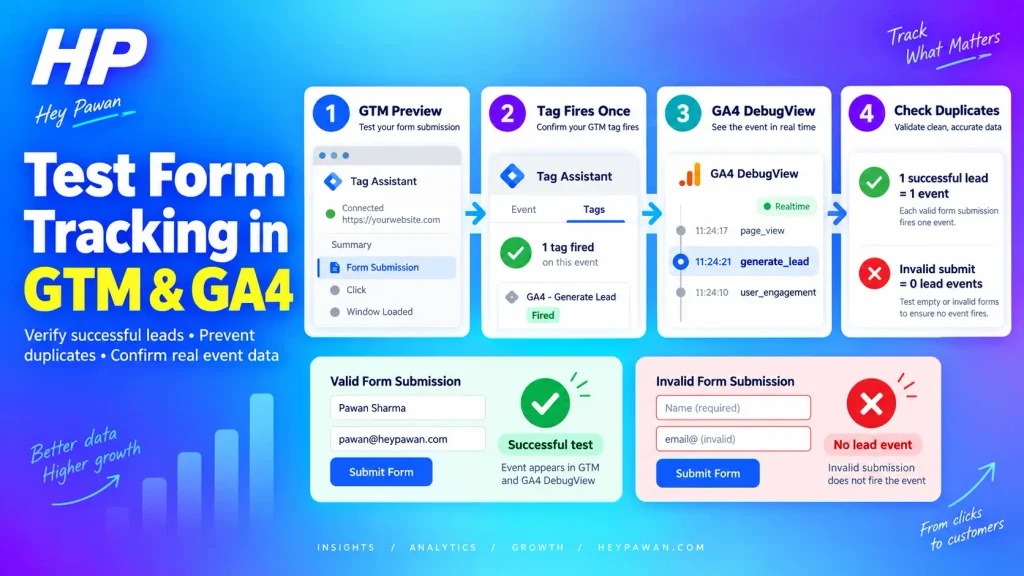
Do not publish the container immediately after creating the tag.
A reliable setup should pass a simple rule:
One successful lead = one intended GA4 lead event.
One failed submission = zero intended lead events.
Start with GTM Preview:
- Open your GTM workspace.
- Click Preview.
- Enter the website URL.
- Click Connect.
- Complete the form successfully.
In Tag Assistant, confirm that the correct trigger occurred and the GA4 Event tag fired exactly once.
Then perform an invalid test. Leave a required field empty or create another safe validation failure. The generate_lead event should not fire.
Next, verify the Analytics side.
In GA4, go to:
Admin → Data display → DebugView
Submit another valid test form and look for the event in DebugView. You can also check Realtime as an additional collection check.
This distinction matters. Seeing “Tag Fired” in GTM confirms that GTM attempted to execute the tag. Confirming the event in DebugView or Realtime shows that GA4 actually received it.
Also check for duplicates. If one form completion produces two generate_lead events, investigate before publishing.
At this point, you can trust the setup to track form submissions in GA4 only when the valid submission, invalid submission, GA4 receipt, and duplicate checks all behave as expected.
Fix Missing, False, or Duplicate Form Submission Events
Troubleshoot the implementation in layers instead of changing several settings at once.
If GTM never detects the successful form action, first check the form architecture. An AJAX or JavaScript form may need a Custom Event, dataLayer event, confirmation-page trigger, or another reliable success state instead of the native Form Submission trigger.
If GTM detects the success event but the GA4 Event tag does not fire, inspect the trigger conditions and make sure the correct trigger is attached to the tag.
If the tag fires but the event does not appear in DebugView or Realtime, check the Measurement ID, Google tag configuration, destination property, and any consent or privacy settings affecting Analytics collection.
If the event fires twice, look for:
- two GTM tags listening to the same action
- two triggers sending equivalent lead events
- both confirmation-page tracking and another success event sending generate_lead
- an Element Visibility trigger firing repeatedly
- automatic and manual events both being treated as the same lead KPI
If an invalid form attempt creates generate_lead, the trigger is measuring an attempt instead of confirmed success. Change the trigger so it represents the real completion state.
Once all tests pass, click Submit in GTM, select Publish and Create Version, add a useful version name and description, and publish the container. Then perform one final live submission test.
If generate_lead represents an important business outcome, you can mark it as a GA4 key event under:
Admin → Data display → Events
Do this only after you trust the underlying tracking.
If your form uses custom JavaScript, AJAX, multiple lead forms, or keeps producing missing or duplicate events, I can help audit and configure the GA4 and Google Tag Manager setup. I work independently across analytics, conversion tracking, website implementation, SEO, and digital marketing with 10+ years of experience.
Frequently Asked Questions
Do I need to turn off GA4 Form interactions if I use GTM for lead tracking?
Not necessarily. Enhanced Measurement can continue collecting form-interaction data while GTM sends a controlled generate_lead event for confirmed leads. The important part is deciding which event is your canonical lead KPI so you do not treat two different events as two leads.
Can I track several forms separately in GA4?
Yes. Scope each GTM trigger using stable identifiers such as Form ID, Form Classes, page location, or another non-personal value. This lets you distinguish forms without sending visitor contact information to GA4.
What if my AJAX form does not expose a custom success event?
Check whether the form plugin or application exposes another reliable success signal. A unique confirmation message can sometimes be tracked with an Element Visibility trigger, but it must be tested carefully. If there is no dependable browser-side signal, developer or platform-specific implementation may be necessary.
Can GTM track a form inside an iframe?
It depends on how the iframe is implemented. Cross-origin iframes restrict direct access to their internal page content, so some embedded third-party forms require platform-specific tracking or a separate communication method.
Sources
- Google Analytics Help: Enhanced measurement events
- Google Tag Manager Help: Form submission trigger
- Google Tag Manager Help: Custom event trigger
- Google Tag Platform Developers: The data layer
- Google Tag Manager Help: Set up Google Analytics events in Tag Manager
- Google Analytics Developers: Recommended events
- Google Analytics Help: Monitor events in DebugView
- Google Analytics Help: Mark events as key events
- Google Analytics Help: Best practices to avoid sending personally identifiable information
- Google Tag Manager Help: Publishing, versions, and approvals