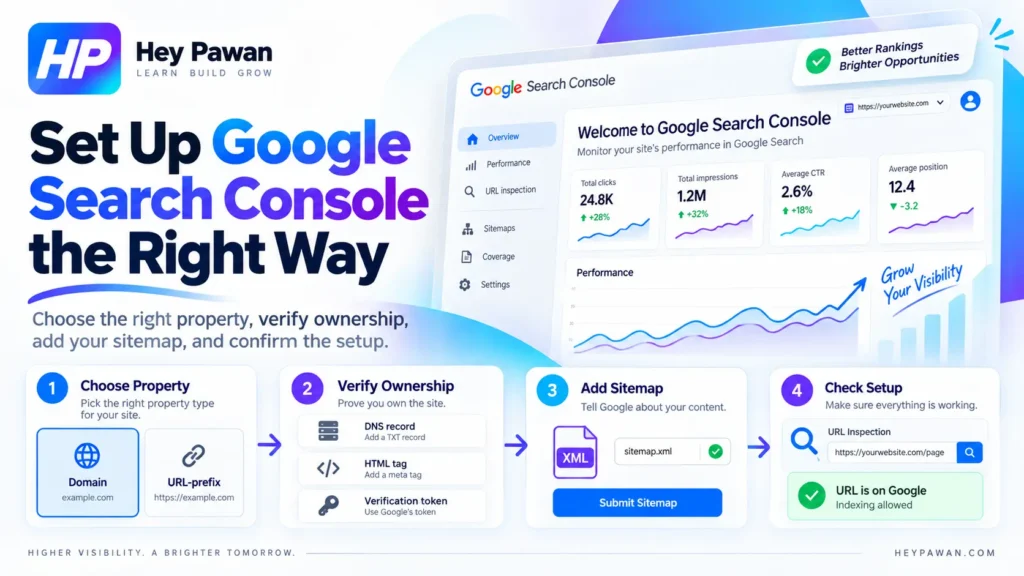
If you want to set up Google Search Console correctly, the goal is not simply to add your website and click Verify. A reliable setup should use the right property type, keep long-term ownership under the right account, give collaborators appropriate access, connect a sitemap when useful, and include a final check that confirms the setup is usable.
Follow the process in this order so you do not end up with incomplete property coverage or fragile access.
What You Need Before You Set Up Google Search Console
Before creating a property, confirm four things:
- The Google Account that should retain access. For a business website, long-term control should not depend entirely on a temporary developer, freelancer, or other collaborator.
- The website scope you need. Decide whether you want the entire domain or only a specific protocol, subdomain, or directory.
- Your available verification access. A Domain property requires DNS control. URL-prefix properties support additional verification methods.
- Your sitemap URL, if you use one. Many CMS and hosting platforms generate XML sitemaps automatically.
This preparation matters because Search Console ownership can control sensitive site information and user permissions. Google also requires ownership verification before someone receives verified-owner access.
Choose the Right Search Console Property: Domain or URL-Prefix
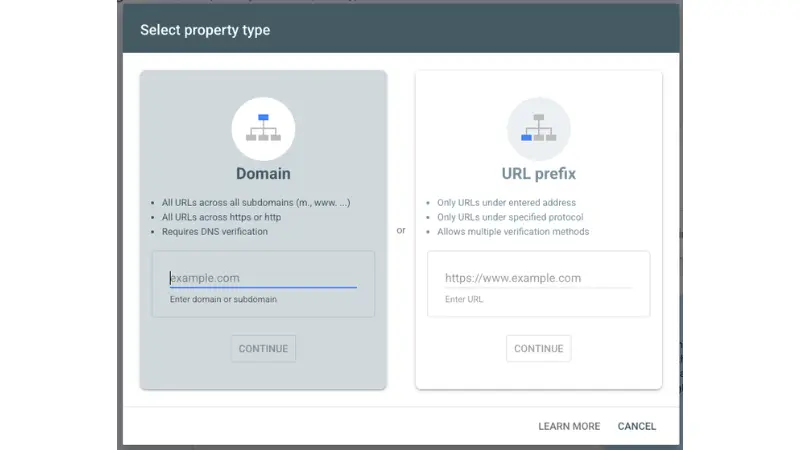
Choose a Domain property when you want broad coverage across the domain and can access DNS. Choose a URL-prefix property when you need a narrower scope or want to use another supported verification method.
Domain property
Enter only the domain, for example:
example.com
Do not include https:// or a folder path.
A Domain property can cover variations such as:
- https://example.com
- http://example.com
- https://www.example.com
- subdomains under the domain
Domain properties require DNS verification.
For a business that wants one consolidated property covering the whole domain, this is usually the simpler starting point when DNS access is available.
URL-prefix property
A URL-prefix property includes only URLs beginning with the exact prefix entered.
For example:
does not automatically include http://example.com/ or https://www.example.com/.
URL-prefix properties are useful when you need reporting for a particular protocol, subdomain, or path. They also support more verification methods. You can use a Domain property and additional URL-prefix properties together when separate reporting is useful.
How to Set Up Google Search Console and Verify Your Website
Open Google Search Console, use the property selector, choose + Add property, and enter the site using the property type you selected.
The next step is ownership verification.
Verify a Domain property with DNS
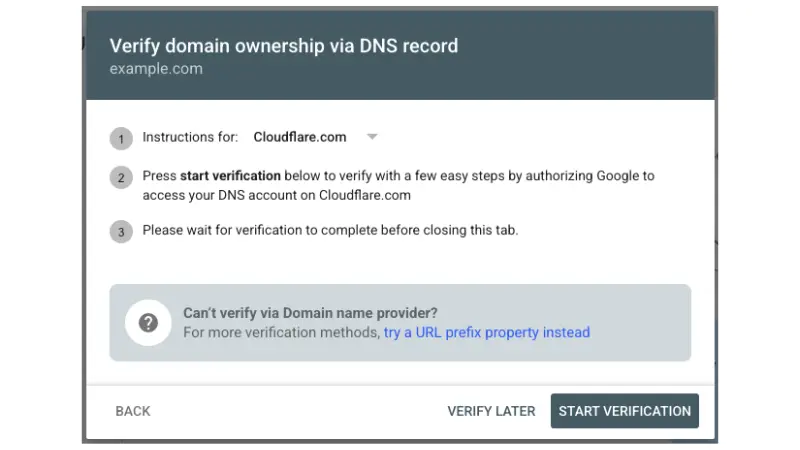
For a Domain property, Search Console uses DNS verification.
Google provides a DNS verification record. Add the supplied record through the provider currently managing your domain’s DNS, then return to Search Console and click Verify.
If Google cannot find a manually added DNS record immediately, allow time for DNS propagation. Google notes that a manually installed record can sometimes take up to two or three days to become available through the provider.
After verification succeeds, do not remove the verification record. Search Console periodically checks whether verification remains valid, and access can eventually expire if the token disappears.
Verify a URL-prefix property
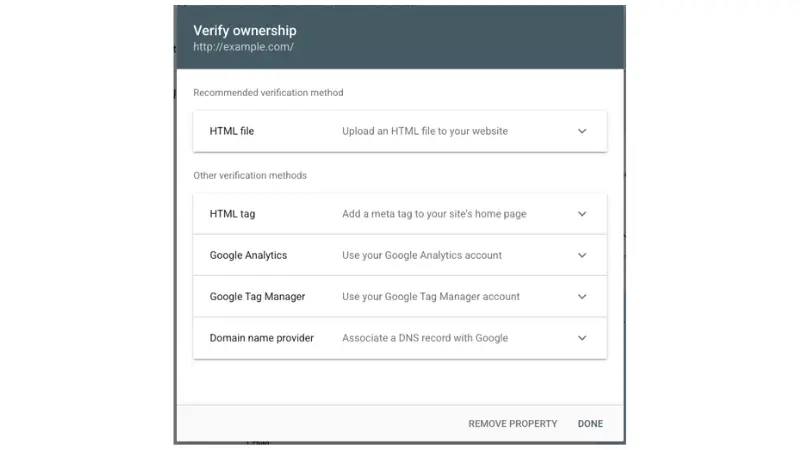
URL-prefix properties can support methods including:
- HTML file upload
- HTML meta tag
- DNS
- Google Analytics
- Google Tag Manager
Use the method that matches the access you already have.
For example, an HTML verification tag needs to remain in the homepage <head>, while Google Analytics and Google Tag Manager verification depend on the appropriate account permissions and an eligible implementation already being present.
You do not need every verification method. However, Google allows multiple methods, so adding another durable method can provide useful protection if the original verification method later fails.
Finish the Setup With Permissions and Your Sitemap
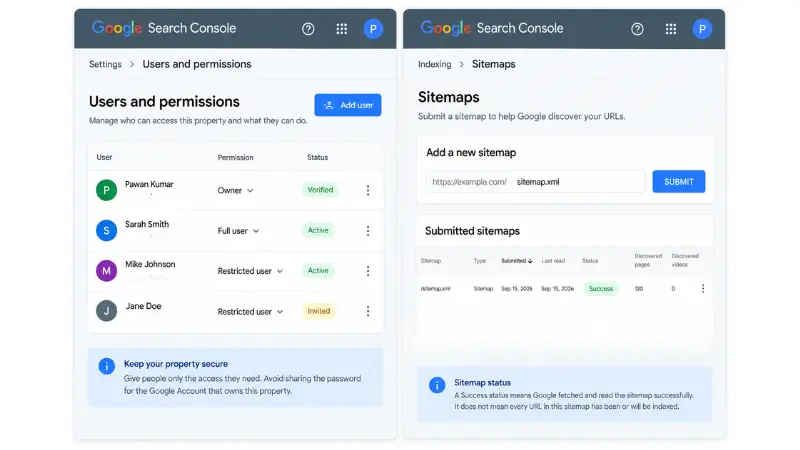
After verification, open Settings → Users and permissions.
Search Console distinguishes between owners, Full users, and Restricted users. Owners have the highest level of control and can manage other users.
Keep reliable business-controlled ownership and give other people only the access they need. Avoid sharing the password for the Google Account that owns the property.
Next, review your sitemap.
A sitemap can help Google discover URLs, but not every small, well-linked site needs to submit one manually through Search Console. Some hosting platforms also manage sitemaps automatically.
If you have a sitemap you want to submit:
- Confirm the sitemap URL is publicly accessible.
- Open Sitemaps in Search Console.
- Enter it under Add a new sitemap.
- Click Submit.
- Check the status after Google processes it.
A Success status means Google fetched and read the sitemap successfully. It does not mean every URL in that sitemap has been or will be indexed.
How to Check That Google Search Console Is Set Up Correctly
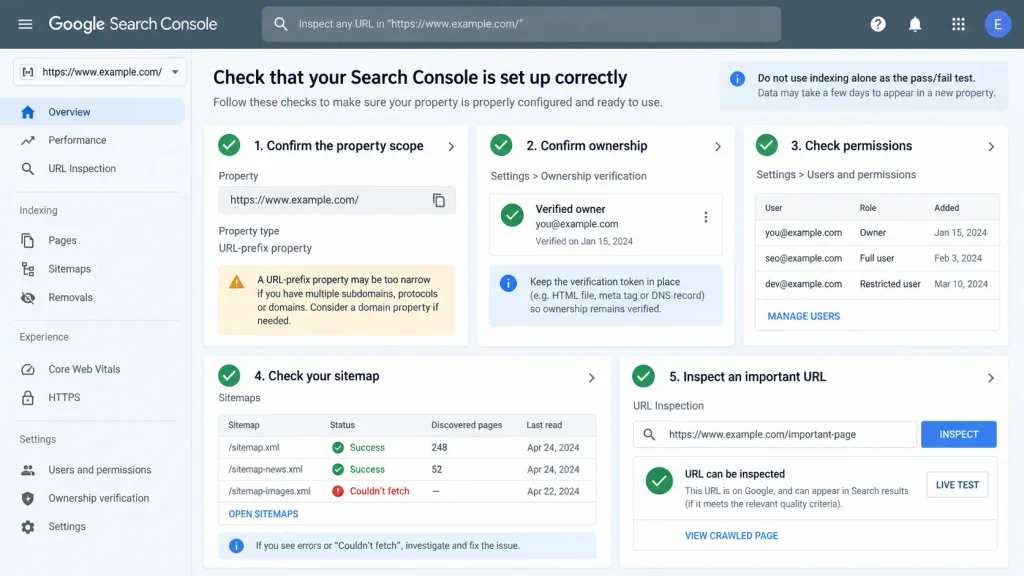
After you set up Google Search Console, run these five checks instead of relying only on the original verification message.
1. Confirm the property scope.
Make sure the property covers the site versions you intended. A URL-prefix property may be too narrow if you expected whole-domain reporting.
2. Confirm ownership.
Open Settings → Ownership verification and make sure a suitable long-term owner remains verified. Keep the required verification token in place.
3. Check permissions.
Review Settings → Users and permissions and confirm collaborators have appropriate access without unnecessary ownership rights.
4. Check your sitemap.
If you submitted one, review its status. A sitemap showing errors or Couldn’t fetch needs separate investigation.
5. Inspect an important URL.
Enter a full URL from the website into the URL Inspection field at the top of Search Console. URL Inspection shows what Google knows about that page and can also run a live test.
Do not use indexing as the pass/fail test for the Search Console setup itself. A page can be inspectable in a correctly configured property without currently being indexed.
Also, an empty property immediately after setup is not necessarily a problem. Google says data generally begins appearing within a few days after a property is added.
Once the setup is working, you can use Search Console for deeper page-level analysis. My existing on-page SEO guide for Search and AI visibility covers that next stage without duplicating it here.
What to Check If Search Console Verification Fails
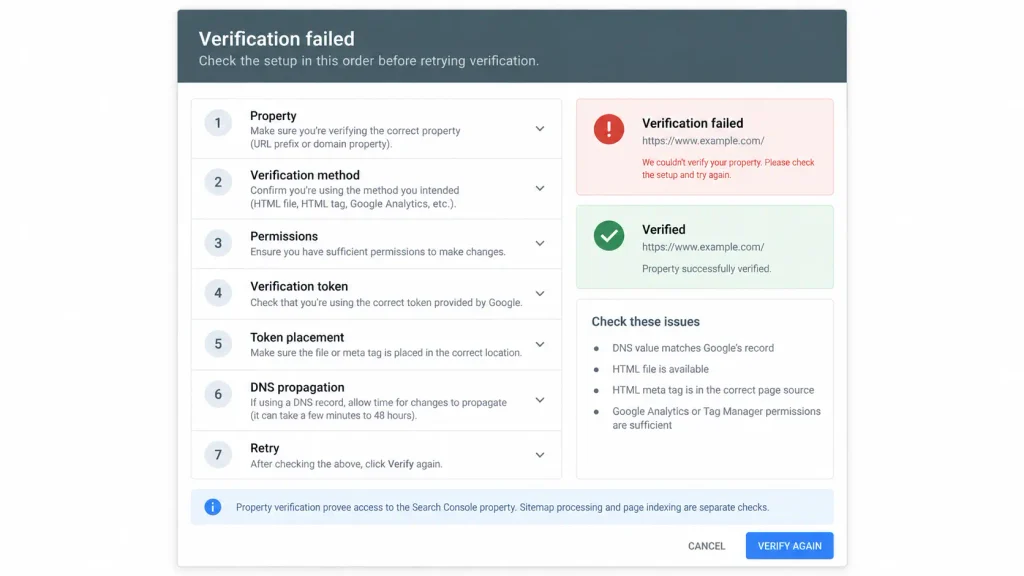
When verification fails, check the cause in a fixed order:
Property → verification method → permissions → verification token → token placement → DNS propagation → retry
First confirm that you added the correct property. URL-prefix properties depend on the exact prefix, while Domain properties use DNS verification.
Next, confirm that the verification method is correctly implemented. Check that:
- the DNS value matches Google’s record;
- an HTML file is available where Search Console expects it;
- an HTML meta tag is in the correct page source;
- your Analytics or Tag Manager account has the required permissions.
Google documents missing, incorrect, inaccessible, or misplaced verification tokens as common causes of verification failure.
For DNS verification, allow propagation time before retrying.
If property verification succeeds but the sitemap reports Couldn’t fetch or errors, treat that as a sitemap problem rather than repeating ownership verification. Open the sitemap entry and review the specific issue Google reports.
The important distinction is:
Property verification proves your access to the Search Console property. Sitemap processing and page indexing are separate checks.
If ownership history, DNS access, migrations, multiple subdomains, or technical indexing issues make the setup difficult, I provide direct SEO, analytics, and website support as an independent digital marketing professional with 10+ years of experience.
Frequently Asked Questions
Do I need Google Analytics to use Google Search Console?
No. Google Analytics is not required to use Search Console. For eligible URL-prefix properties, an existing Google Analytics implementation can be one ownership-verification option when its permission requirements are met.
What should I do if someone else already owns the Search Console property?
If you cannot verify ownership yourself, an existing owner can grant your Google Account access. If the business needs independent long-term ownership, establish an appropriate verified owner rather than relying indefinitely on another person’s account.
What happens if the only verified owner loses access?
Search Console requires at least one verified owner for other users to retain property access. If the only verified owner leaves, another authorized person should verify ownership to maintain or regain control.