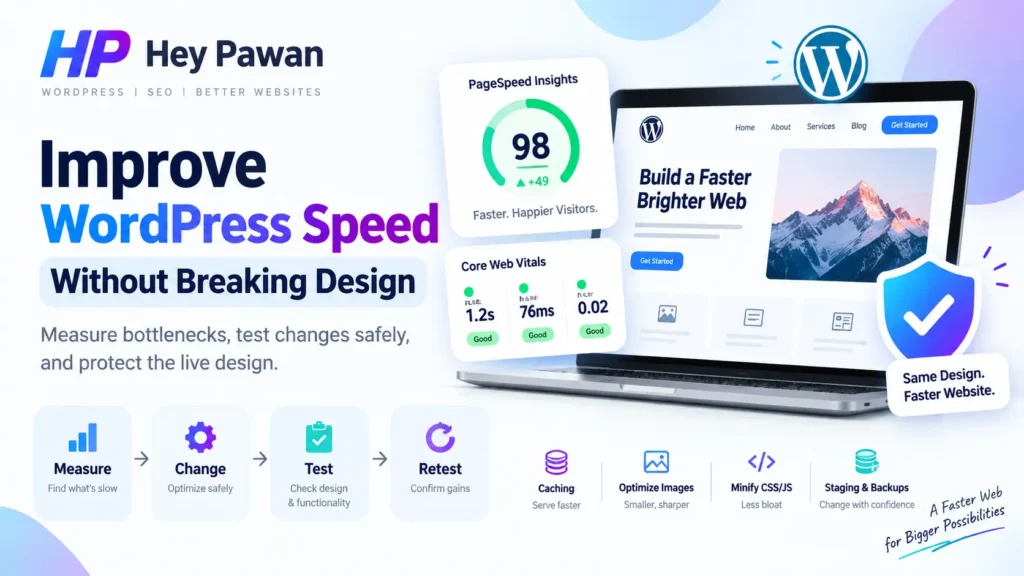
Trying to improve WordPress speed does not mean activating every caching, minification, lazy-loading, and JavaScript option you can find. That can improve a test score while breaking menus, forms, fonts, responsive layouts, sliders, or other parts of the site.
A safer approach is to measure the problem first, change one performance layer at a time, check the design and functionality, and then retest. Before starting, make sure you have WordPress administrator access, access to hosting or cache controls where applicable, and a current backup you know how to restore.
How to Improve WordPress Speed Safely: Measure Before You Change Anything
Start with a performance baseline so you know what actually needs improvement.
Choose two to four representative pages rather than testing only the homepage. Depending on the website, that might include the homepage, an important service or landing page, a blog article, and a product or category page for an ecommerce site.
Run each important URL through Google PageSpeed Insights and review mobile and desktop results. Pay particular attention to the current Core Web Vitals:
- Largest Contentful Paint (LCP): Good at 2.5 seconds or less
- Interaction to Next Paint (INP): Good at 200 milliseconds or less
- Cumulative Layout Shift (CLS): Good at 0.1 or less
Google evaluates these thresholds at the 75th percentile of page loads.
Also review the diagnostics below the headline score. A low score alone does not tell you whether the main problem is the server, images, JavaScript, CSS, third-party scripts, or something else.
PageSpeed Insights can show real-user field data when enough data is available, alongside Lighthouse lab diagnostics. These are not the same measurement. Lab results help you debug the current page under controlled conditions, while field data reflects how real visitors have experienced the page over time.
Inside WordPress, open Tools → Site Health. Use the Status and Info screens to spot relevant environment, plugin, theme, or server issues. Site Health supports diagnosis, but it does not replace page-speed testing.
Record the page, problem, baseline metric, and main issue you plan to investigate before making changes.
Create a Rollback Point Before Changing Caching, CSS, JavaScript, or Themes
Performance changes should be reversible.
Before changes that could affect the front end, confirm that you have a current backup of both the WordPress database and website files. WordPress documents these as separate parts of a typical complete backup, so make sure you can restore both.
For higher-risk work, use a staging copy when practical. This is especially useful before changing theme behavior, CSS delivery, JavaScript loading, server configuration, plugin conflicts, or caching rules for dynamic pages.
Record important settings before modifying them, and avoid changing several performance features at once. If five settings are enabled together and the layout breaks, identifying the cause becomes unnecessarily difficult.
Fix the Highest-Impact WordPress Bottleneck Before Advanced Code Optimization
The best first fix depends on what the baseline shows. For many sites, the largest opportunities are in caching, media, unnecessary site overhead, or third-party resources before advanced CSS or JavaScript work is necessary.
If server processing is the problem, first check whether page caching already exists through the host, server, CDN, or a performance plugin. Cached pages can reduce repeated server processing, but WordPress notes that caching becomes more complex when pages contain substantial dynamic content.
Avoid stacking multiple caching systems unless you understand how they interact.
For images, resize and compress unnecessarily large files and confirm that the site is serving appropriate responsive images. WordPress supports responsive image markup using srcset and sizes.
Identify the image responsible for LCP before changing loading behavior. Do not lazy-load the LCP image because that delays an important resource. Lazy loading is better suited to images outside the initial viewport.
Next, review themes, plugins, page-builder features, and third-party scripts. Plugin count alone is not a diagnosis. Look instead for unused features, duplicate functionality, heavy widgets, chat tools, heatmaps, advertising scripts, embedded media, or other resources whose business value does not justify their performance cost.
After each meaningful change, clear the relevant caches, load the page as a normal logged-out visitor, confirm that it still works, and rerun the same performance test.
Treat CSS, JavaScript, and Font Changes as Higher-Risk Optimizations
CSS, JavaScript, and font-loading changes can improve performance, but they are also more likely to affect layout and interactive components. Move into these changes only when the diagnosis shows they matter, and preferably test higher-risk work on staging first.
| Optimization | Typical Risk | What to Check |
| Resize or compress images | Low | Image quality and hero rendering |
| Page caching | Moderate | Dynamic content and logged-out pages |
| Font-loading changes | Moderate | Typography, wrapping, layout shifts |
| JavaScript delay or defer | High | Menus, forms, sliders, popups |
| Critical or unused CSS changes | High | Full responsive layout |
| Theme or plugin removal | Variable | Dependent functionality |
With CSS changes, check more than the initial page state. Navigation dropdowns, hover states, accordions, popups, and responsive breakpoints may rely on styles an automated tool appears to consider unnecessary. Google describes critical CSS as an advanced technique that can introduce bugs when implemented incorrectly.
With JavaScript, avoid blindly delaying every file. Execution order and dependencies matter. A faster initial render is not useful if a menu, booking form, checkout, or CTA stops responding.
After font-loading changes, inspect heading wrapping, button dimensions, navigation spacing, and visible layout shifts.
Regression-Test the Website Before You Trust the Speed Result
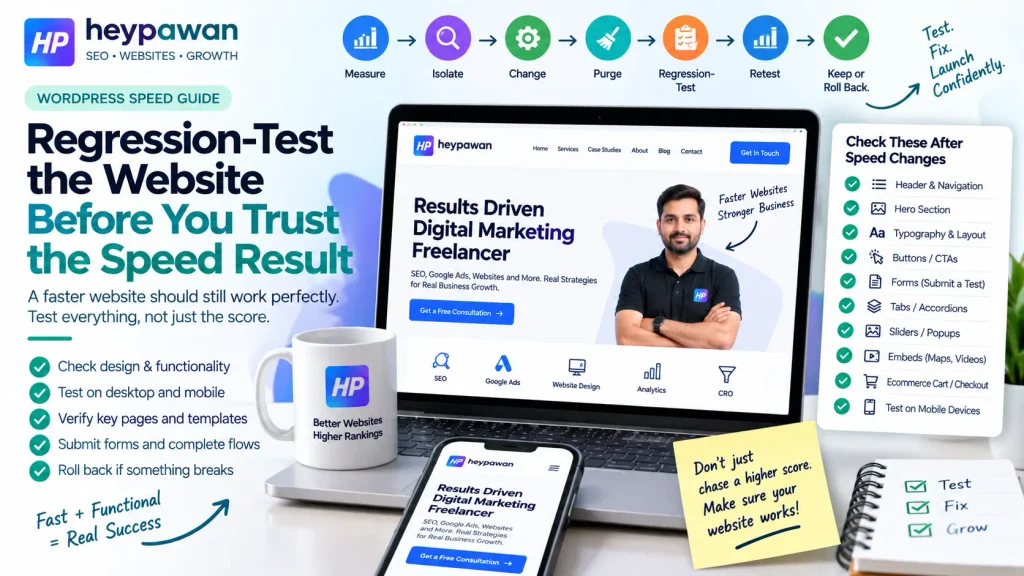
A speed change is not successful if the score improves but the site stops working correctly.
Use this loop after every meaningful design-sensitive change:
Measure → Isolate → Change → Purge → Regression-Test → Retest → Keep or Roll Back
After clearing the relevant caches, test as a logged-out visitor on desktop and mobile. Check the header, navigation, hero, typography, CTAs, forms, tabs or accordions, sliders, popups, sticky elements, embeds, and any ecommerce cart or checkout functionality the site uses.
Do not only look at a form. Submit a test when possible. Do not only inspect the homepage. Check the templates affected by the optimization.
If something breaks, disable or roll back the most recent optimization first. Then retest before adding exceptions or more performance settings.
Verify That WordPress Is Actually Faster
Once the site still looks and works correctly, rerun the tests used for the baseline. Compare the same URL, the same device category, and the metric you intended to improve. If laboratory results vary materially, use more than one run before drawing a conclusion.
Then make a simple decision:
- Performance improved and the site works: keep the change.
- There is no meaningful improvement: remove unnecessary complexity and investigate the next bottleneck.
- Performance improved but something broke: roll back or use a narrowly targeted exclusion after identifying the conflict.
- Performance became worse: reverse the change.
Do not expect real-user Core Web Vitals to change immediately after an optimization. PageSpeed Insights field data represents a trailing 28-day period, while a new Lighthouse lab test can show the effect of a current change immediately.
Also avoid chasing a perfect score solely for SEO. Google uses Core Web Vitals within its ranking systems, but good performance reports do not guarantee top rankings.
If the remaining bottleneck involves theme or page-builder code, complex caching, JavaScript conflicts, server configuration, or broader technical SEO issues, I can help you investigate it directly as an independent digital marketing professional instead of applying another generic optimization checklist.
Frequently Asked Questions
Should I optimize WordPress for mobile or desktop first?
Test both. Prioritize the device where your real-user or diagnostic data shows the more material problem, especially when that device represents an important share of your visitors. A strong desktop result does not prove the mobile experience is acceptable.
Does every WordPress website need a CDN?
No. A CDN can be useful when geographic distance or asset delivery is a meaningful bottleneck, particularly for audiences spread across multiple regions. It is not automatically the highest-impact improvement for every WordPress site.
Can I improve WordPress speed without changing my theme?
Often, yes. Measure first and address confirmed problems such as caching, oversized media, unnecessary scripts, or plugin overhead. Consider changing the theme only when testing shows that the current theme is a material performance constraint and safer improvements are insufficient.
Sources
- WordPress Performance Optimization Documentation
- WordPress Caching Documentation
- WordPress Backup Documentation
- WordPress Site Health Documentation
- WordPress Responsive Images Documentation
- Google PageSpeed Insights Documentation
- Core Web Vitals Threshold Guidance
- Google LCP Optimization Guidance
- Google Critical CSS Guidance
- Google Page Experience Guidance