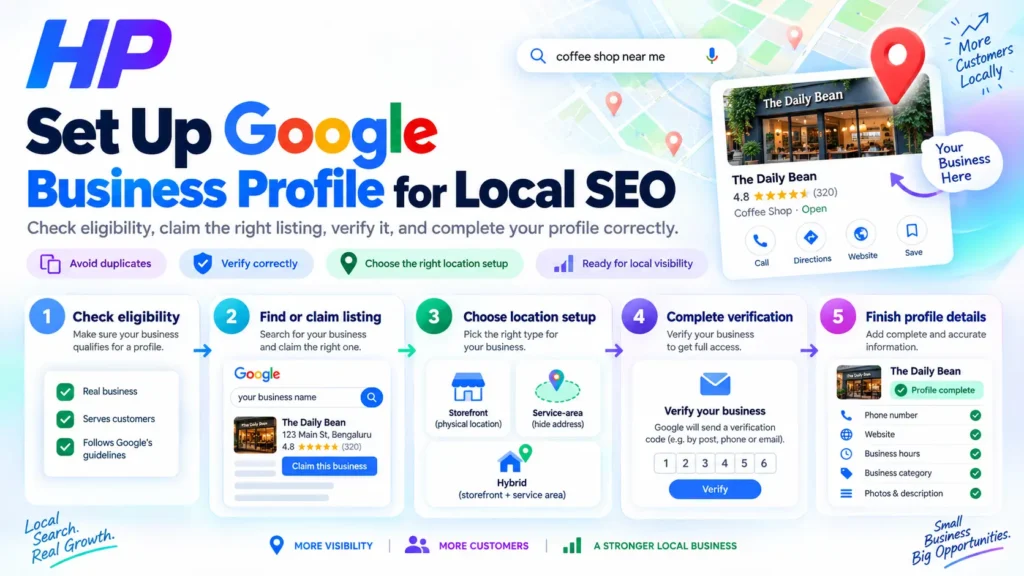
If you want to Set Up Google Business Profile correctly, do not begin by creating a new listing immediately. First confirm that your business is eligible, check whether Google already has a profile for it, and decide whether customers visit your location or you travel to them.
Getting those decisions right helps prevent duplicate listings, ownership conflicts, incorrect addresses, and verification problems. Once the pre-check is complete, you can create or claim the correct profile, verify it, complete the important business information, and check what customers actually see in Google Search and Maps.
Before You Set Up Google Business Profile, Check Eligibility and Existing Listings
Before creating anything, confirm that the business qualifies for a Google Business Profile and search for an existing listing.
Google Business Profiles are generally intended for businesses that interact with customers in person, either at a physical location or by traveling to customers. Online-only businesses and lead-generation businesses generally are not eligible.
Then search for your exact business name and location in both Google Search and Google Maps.
Use this decision process:
- No existing profile: Create a new Business Profile.
- An existing unverified profile: Claim the existing listing.
- A verified profile controlled by someone else: Request access or ownership.
- A duplicate appears: Resolve the duplicate instead of creating another profile.
Google generally allows only one Business Profile for the same business. If a profile is considered a duplicate, it may not appear on Google Search or Maps.
Prepare the Right Business Information and Location Setup
Before entering information into Google, prepare the details that represent your business in the real world.
You will usually need:
- your actual business name;
- your main business category;
- business address or service areas;
- phone number;
- website, if you have one;
- normal customer-facing hours.
Do not add extra service keywords, city names, slogans, or promotional phrases to your business name just to improve rankings. Google’s guidelines require the profile to reflect how the business is represented in the real world.
Storefront, Service-Area, or Hybrid?
Your location setup depends on how customers interact with the business.
A storefront business serves customers at its physical location.
A service-area business travels to customers and does not serve them at its address.
A hybrid business serves customers at a physical location and also travels to customers.
If customers do not visit your business address, Google instructs you to remove the address from the public profile and configure the areas you actually serve instead. Service areas can be based on places such as cities or postal codes rather than a custom radius.
Choose the model that reflects how the business really operates. Do not use a virtual office, mailbox, or artificial location simply to target another city.
How to Set Up Google Business Profile: Create or Claim the Correct Listing
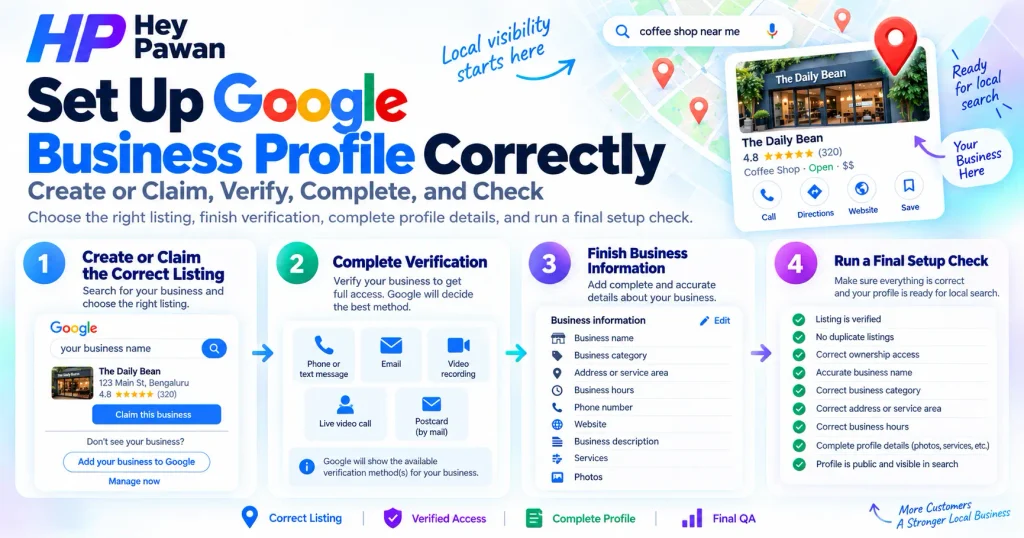
Once you know that the business is eligible and you have checked for an existing listing, use the appropriate setup route.
For a business that does not already have a profile:
- Open Google’s Business Profile creation flow at business.google.com/add.
- Choose Add your business to Google.
- Enter the business information Google requests.
- Select the appropriate business category and location configuration.
- Continue until Google presents the verification step.
If the business already appears in Google Maps but has not been claimed, open the correct listing and look for Claim this business, then select Manage now and follow Google’s instructions.
If another person already manages the legitimate profile, use Google’s ownership request process rather than creating another listing. Google treats creating a new profile and claiming an existing one as separate workflows.
Before continuing, double-check that you are managing the correct business and location.
Complete the Verification Method Google Gives You
Verification confirms that you are authorized to manage the business. Google automatically determines which verification options are available for each profile, so you cannot assume that phone, email, postcard, or video verification will always be offered.
When you see Get verified, follow the method displayed for your profile.
Depending on the business, available methods may include:
- phone or text;
- email;
- video recording;
- live video call;
- mail.
Google says verification methods can depend on factors such as the business type, available public information, region, and business hours. More than one method may occasionally be required.
If Google Asks for Video Verification
If Business video is offered, record it directly through Google’s verification process on a mobile device.
The current requirements say the video must be at least 30 seconds long, recorded live, and submitted as one complete, unedited recording with no breaks. It should demonstrate:
- where the business operates;
- that the business actually exists;
- that you are authorized to manage it.
For a storefront, this can include permanent signage, the premises, and access to employee-only areas. For a service-area business, evidence may include tools, equipment, branded vehicles, business documents, or access to business-only assets.
If the video is rejected, check the issues Google identifies and record another video with the missing evidence.
Do not assume verification will always be immediate. Google reviews the evidence before confirming some profiles.
Finish the Important Business Information After Verification
Once verification is complete, open your Business Profile through Google Search or Google Maps and use Edit profile to review the customer-facing information.
Prioritize the details that help Google and customers understand the business accurately:
- Confirm the real business name.
- Review the primary category and add only genuinely relevant additional categories.
- Check the address or service area.
- Add correct opening hours.
- Confirm the business phone number.
- Add the website if you have one.
- Write a useful business description.
- Add relevant services and attributes where those options are available.
- Upload genuine business photos.
Google currently lets individual profile owners manage these details directly through Search and Maps, although the exact options displayed can vary by business category, region, and device.
Avoid treating categories or the description as places to stuff keywords. Google’s category guidance says the primary category should specifically describe the main business, while additional categories should represent relevant parts of the business rather than every product or service it offers.
Run a Final Google Business Profile Setup Check
A profile is not fully set up just because the verification step completed. Run a final QA check before moving on to ongoing Local SEO work.
Confirm that:
- the correct business listing is verified;
- the business retains appropriate ownership;
- there is no unnecessary duplicate profile;
- the business name is accurate;
- the primary category represents the main business;
- the storefront or service-area configuration is correct;
- the address is displayed only when customers actually visit it;
- service areas are accurate;
- phone number and website are correct;
- opening hours are current;
- important edits have been accepted.
If another person, freelancer, or marketing provider needs access, do not share the main Google Account password. Go to the Business Profile and select More → Business Profile settings → People and access, then invite the person as an Owner or Manager with their own Google Account.
Finally, look at the profile the way a customer would. Search for the business in Google Maps or view it from a private browser session and confirm that the public information appears as intended. Google specifically recommends these methods for checking how other people see the profile.
Some changes may show as Pending or Not approved while Google reviews them, so saving an edit does not always mean it is already visible publicly.
Correct setup gives Google accurate information about your business, but it does not guarantee a specific Maps position. Local results are primarily influenced by relevance, distance, and prominence.
If your profile is set up but you are still dealing with ownership, verification, duplicate, service-area, or wider Local SEO problems, I can review the setup and identify what needs attention as an independent digital marketing professional.
Frequently Asked Questions
Is Google Business Profile free?
Yes. Google allows eligible businesses to add or claim a Business Profile without paying for the listing itself.
How long does Google Business Profile verification take?
There is no single timeline for every business. For video verification, Google says review can take up to five business days, while other methods and individual circumstances can vary.
Do I need a website to set up a Google Business Profile?
No website is listed as a general eligibility requirement. If your business has a website, you can add it to the profile with your other customer-facing information.
How many service areas can I add to Google Business Profile?
Google currently allows up to 20 service areas. They should be specific areas you actually serve, such as cities or postal codes, rather than an artificial radius around the business.
Can I change my business category after verification?
Yes. Open your Business Profile, select Edit profile, edit the Business category, and save the change. Google notes that changing or adding a category may require the business to verify again.
Sources
- Google Business Profile eligibility and ownership guidelines
- Google: Add or claim your Business Profile
- Google guidelines for representing your business
- Google service-area and hybrid business guidance
- Google Business Profile verification guide
- Google Business video verification requirements
- Google Business Profile editing guide
- Google business category guidance
- Google Business Profile owners and managers guide
- Google local ranking guidance