Learning how to add schema markup to WordPress should not begin with installing another plugin or pasting JSON-LD into your site.
Your WordPress website may already generate structured data through an SEO plugin, theme, WooCommerce, or another specialist plugin. Adding a second implementation without checking what already exists can create conflicting or inaccurate markup.
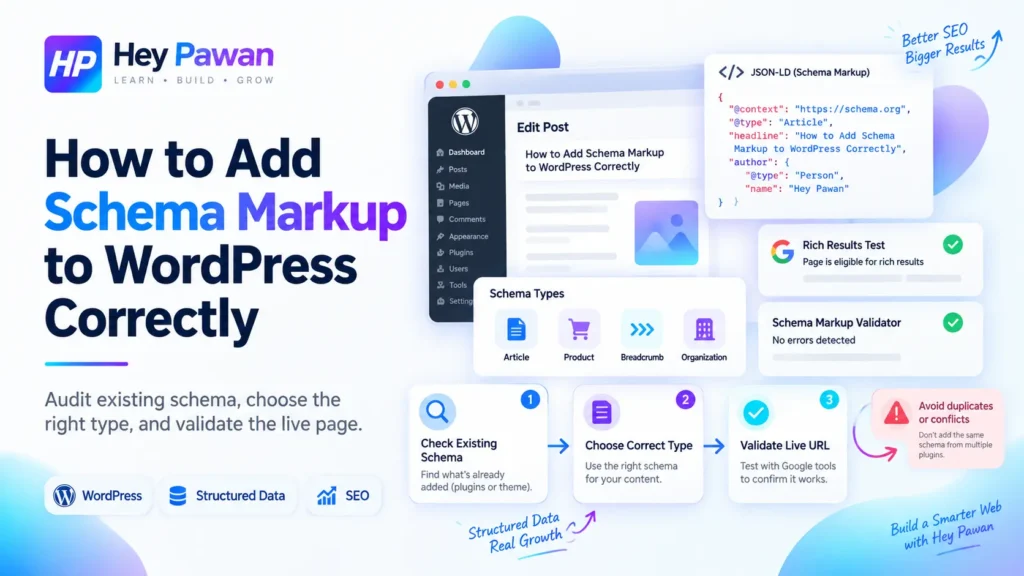
A safer process is to audit the existing schema first, decide what the page actually represents, choose one controlled implementation method, and then validate the live URL.
Check What Schema Your WordPress Site Already Has
Before adding anything, test the page that you want to update.
Start with the Schema.org Markup Validator. Enter the live page URL and review the structured-data entities it detects. You might already see items such as:
- WebSite
- WebPage
- Organization or Person
- Article or BlogPosting
- BreadcrumbList
- Product
- another page-specific type
You can also test the page with Google’s Rich Results Test to see whether Google recognizes structured data associated with one of its currently supported Search features.
Do not assume that seeing several schema entities means something is wrong. Google can understand multiple relevant structured-data items on the same page, either separately or connected as related entities.
For example, a blog post may be represented as an Article while also being part of a WebPage, connected to an Organization, and accompanied by BreadcrumbList markup.
The real issue is duplicated, contradictory, irrelevant, or inaccurate markup.
Next, check which WordPress systems could be generating the data. Common sources include your SEO plugin, theme, ecommerce plugin, event or recipe plugin, and custom code.
The goal is simple: identify what already exists and who owns it before adding another schema generator.
Choose Schema That Matches What the Page Actually Contains
Schema should describe the real content of the page, not the Search appearance you hope to receive.
Start with the page itself:
- A normal blog article may use Article or BlogPosting.
- A product detail page may use Product.
- An actual event page may use Event.
- A genuine recipe page may use Recipe.
- Site hierarchy may be represented through BreadcrumbList.
You do not need to add every schema type that seems relevant to your business.
Choose the type that accurately represents what visitors can actually see and understand on that page. Google requires structured data to represent the page’s real content rather than hidden, irrelevant, or misleading information.
There is also an important difference between Schema.org validity and Google Search feature eligibility.
Schema.org contains a much broader vocabulary than Google uses for rich results. A schema type can therefore be valid even when Google does not provide a special Search feature for it. Google recommends using its Search Central documentation as the definitive source for Google-specific structured-data behavior.
This distinction matters when reading older SEO tutorials. Google deprecated HowTo rich results and significantly restricted FAQ rich-result visibility. Do not add those schema types simply because an old guide suggests they will produce enhanced Search results.
When Google visibility is part of the goal, check Google’s current structured-data documentation for that specific content type.
How to Add Schema Markup to WordPress Correctly
For most WordPress business websites, the safest approach is to use the schema functionality already available in your current SEO or structured-data plugin.
Custom JSON-LD is useful when you genuinely need functionality that your existing setup cannot provide.
Use Your Existing SEO or Schema Plugin
First check your current SEO plugin.
If you use Yoast SEO, its current schema controls are available under:
WordPress Dashboard → Yoast SEO → Settings → Advanced → Schema
Yoast normally generates a connected schema graph automatically. Individual page and post schema settings can also be adjusted from the Yoast interface when editing content.
That means a Yoast website may already contain substantial structured data even if you have never manually created schema.
If you use Rank Math, first check that its Schema module is enabled under:
Rank Math SEO → Dashboard → Modules → Schema (Structured Data)
Then edit the target page or post, open Rank Math’s Schema settings, and use its Schema Generator to choose and configure the appropriate type.
Whichever plugin you use, avoid installing another schema plugin until you know the existing tool cannot handle the implementation you need.
One controlled source for overlapping schema responsibilities is generally easier to troubleshoot and maintain than several systems describing the same entity differently.
Use Custom JSON-LD Only When You Need More Control
Google supports JSON-LD, Microdata, and RDFa, but recommends JSON-LD when the site’s setup allows it because it is generally easier to implement and maintain.
Custom JSON-LD can make sense when your current WordPress setup cannot describe an important entity or relationship correctly.
However, do not casually edit a parent theme file to paste code into it. Use an update-safe implementation such as an appropriate code-management solution, child theme, plugin-controlled implementation, or developer-managed hook.
Also be cautious about relying on the WordPress Custom HTML block for JSON-LD scripts. WordPress can sanitize <script> content when the user does not have the required unfiltered_html capability.
After adding or changing schema, publish the page and test the actual live URL.
Validate the Schema on the Live WordPress Page
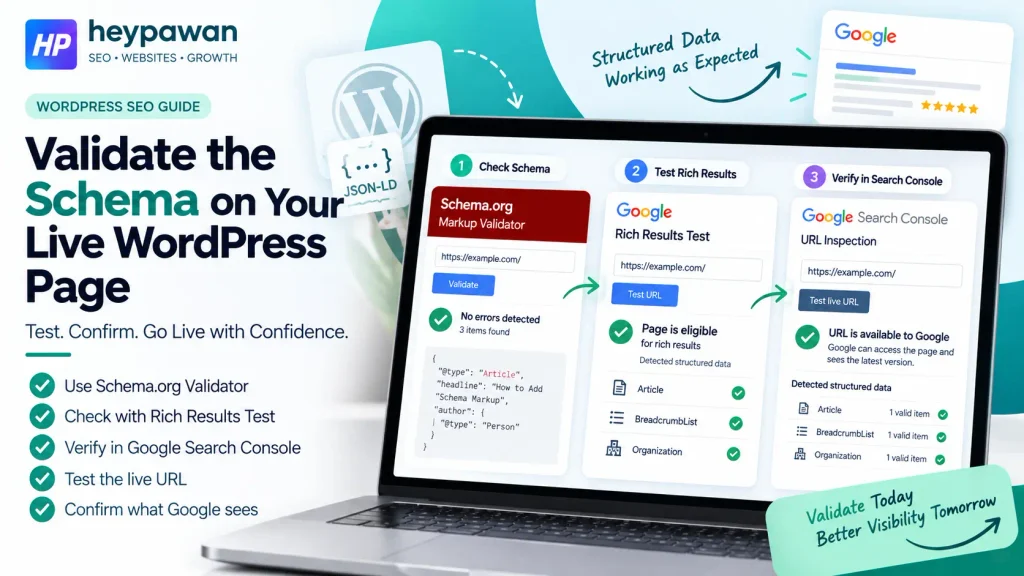
Schema implementation is not finished when a plugin saves successfully or a code snippet looks correct.
Validate the deployed page.
First, use the Schema.org Markup Validator. Confirm that the intended entities and properties appear and that the markup does not contain obvious syntax problems. The validator can extract JSON-LD, RDFa, and Microdata from a URL or supplied markup.
Next, use Google’s Rich Results Test if your schema relates to a Search feature Google currently supports. Test the published URL, not only copied code.
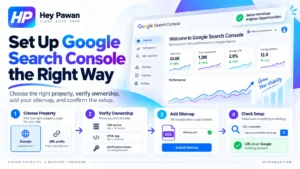
For a website you control, also use Google Search Console:
- Open URL Inspection.
- Enter the complete page URL.
- Choose Test live URL.
- Confirm that Google can access the current page.
- Review the live result and relevant structured-data information.
Google’s own implementation guidance recommends validating structured data, deploying representative pages, and then using URL Inspection to confirm how Google sees them.
Testing the live page matters because working sample code does not prove that WordPress actually outputs the same markup after plugins, caching, templates, or permissions are involved.
A valid result also does not guarantee that Google will display a rich result. Google explicitly states that correctly marked-up structured data can make content eligible for a feature but does not guarantee that the feature will appear.
Fix Duplicate, Incorrect, or Missing Schema
When something looks wrong, find the source of the markup before adding more code.
If you see two similar Article, Product, or Organization entities, check which WordPress components created them. They may come from your SEO plugin, theme, WooCommerce, another specialist plugin, or custom code.
Then determine whether they are legitimately related entities or competing descriptions of the same thing.
If Schema.org validation passes but Google’s Rich Results Test does not recognize an enhancement, check whether Google currently supports that schema type as a Search feature.
If Google’s test reports missing or invalid properties, compare your implementation with the current documentation for that specific structured-data feature.
If pasted code passes but the live URL fails, inspect:
- caching
- plugin conditions
- page templates
- script output
- page accessibility
- the markup actually rendered on the live page
If the schema contains old business details, prices, dates, authors, or other stale information, fix the system generating those values rather than adding a second schema block to override them.
After every meaningful correction, clear relevant caches and retest the live URL.
Run a Final WordPress Schema QA Check
Before considering the implementation complete, confirm each part of the workflow:
- Existing schema has been inspected.
- The page’s real content determines the schema type.
- You know which WordPress system owns the markup.
- The information matches visible page content.
- The intended schema appears on the live URL.
- Schema.org validation has been checked.
- Google validation has been completed where applicable.
- Google can access the live page.
- Conflicting markup has been investigated rather than blindly removed.
That process creates a more maintainable implementation than simply getting a code snippet to turn green in a testing tool.
If your WordPress site has schema coming from several plugins, WooCommerce, custom post types, theme code, or custom JSON-LD and you cannot determine which system should control it, I can help you investigate the technical SEO setup directly as an independent digital marketing professional.
Frequently Asked Questions
Do I need Google Search Console to test schema markup?
No. You can use the public Schema.org Markup Validator and Google’s Rich Results Test without relying on Search Console. Search Console becomes particularly useful after deployment because URL Inspection lets you check how Google accesses a page you control.
Should schema markup be added sitewide or only to individual pages?
It depends on what the markup describes. Site-level entities can apply broadly, while page-specific schema such as Product, Article, Recipe, or Event should appear only where the page genuinely contains that type of content.
Do I need to fix every schema warning?
Not every warning blocks eligibility. Required-property errors matter most, while some recommended properties are optional. Review the documentation for the specific structured-data type instead of treating every warning as equally serious.
Should schema markup be updated when page content changes?
Yes. Structured data should continue to match the page it describes. If prices, dates, business information, authors, availability, or other marked-up details change, the generated schema should reflect those changes too.
What should I do if a plugin adds a schema type I do not want?
First confirm that the type is actually inaccurate or conflicting. Then change that plugin’s relevant schema setting or integration where possible rather than disabling an entire schema framework or adding competing markup to override it.
Sources
Google Search Central, Introduction to Structured Data. Google structured data documentation
Google Search Central, General Structured Data Guidelines. Google structured data guidelines
Google Search Central, Changes to HowTo and FAQ Rich Results. Google HowTo and FAQ update
Schema.org, Schema Markup Validator. Schema.org validator documentation
Yoast, Yoast SEO Settings: Schema. Yoast schema settings
Yoast, The Page or Article Type in Your Schema Settings. Yoast content schema settings
Rank Math, Schema Generator Documentation. Rank Math Schema Generator
WordPress.org, Custom HTML Documentation. WordPress Custom HTML documentation